You searched for this error for one of two reasons. Either Shopify is showing "Inventory not tracked" on a product and you want stock counting turned on — or an order failed to fulfill with "not stocked at this location" and you need it moving again.
They look similar. They are not the same problem, and they have different fixes. This guide covers both, the bulk fix for catalogues with hundreds of affected variants, and — the part most guides skip — why the error keeps coming back for merchants running their own warehouse.
The Three Messages and What Each One Means
Shopify uses close variations of this wording in different places, and merchants understandably mix them up.
1.Inventory not tracked
The variant's inventory tracking / Track quantity setting is off. Shopify holds no sellable count for it: customers can buy without a tracked quantity limit, nothing is decremented on sale, and stock-alert workflows that depend on tracked inventory have no count to use. This is a per-variant setting — a product with five sizes can have three tracked and two untracked, which is exactly why the error often goes unnoticed.
2.Inventory is not stocked at this location
Tracking is on — but the variant has not been assigned to the location that is trying to fulfill the order, or the relevant location is not active for that fulfillment workflow. Shopify expects inventory to be stocked at a location that can fulfill the order. You typically hit this during fulfillment, after adding a new location, or after switching fulfillment priority between locations.
3.Inventory is not tracked at any location
The full-disable state: tracking is off and consequently no location holds a tracked quantity. Fixing it is a two-step: enable tracking first, then assign per-location quantities.

How to Fix "Inventory Not Tracked" — Single Product
- In Shopify admin, go to Products and open the affected product.
- Select the variant (or scroll to the Inventory section for single-variant products).
- Turn on inventory tracking / Track quantity.
- Under Quantity, enter the correct Available quantity for each location that stocks it.
- Save. The variant now decrements on every sale and appears in inventory reports.
One decision to make while you are there: "Continue selling when out of stock." Leave it off unless you deliberately sell on backorder — with it on, a tracked product can still oversell.
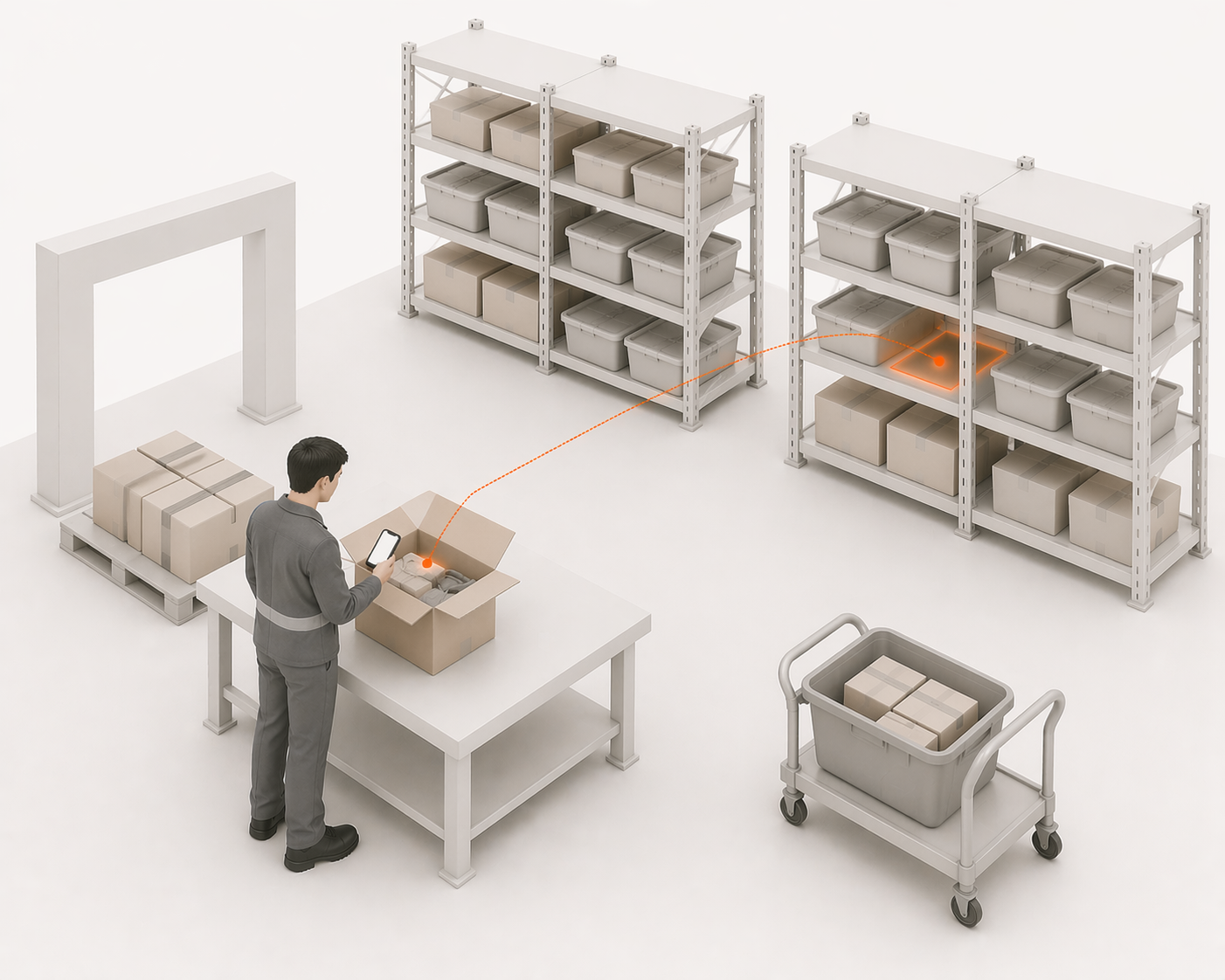
How to Fix It in Bulk
If the audit below turns up many untracked variants, fixing them one by one is not realistic. Two bulk paths:
Bulk editor. Products → select all affected products → Bulk edit. Add the Track quantity column, enable it across every row, then add per-location quantity columns and fill in counts. This is suitable when the affected set is still manageable in the admin.
CSV round-trip. Export your products, set Inventory tracker to shopify on affected rows, update the relevant inventory quantity fields, and re-import with overwrite enabled. If you are working from an older template or import troubleshooting guide, the same concept might appear as Variant Inventory Tracker and Variant Inventory Qty. The right path for large catalogues — and the same file doubles as a record of what you changed.
To find every affected variant in the first place, do not rely on Shopify's Inventory page: variants that are not tracked do not appear there. Inspect product and variant inventory settings directly, use the bulk editor with the Track quantity column, or export the product CSV and look for blank Inventory tracker / legacy Variant Inventory Tracker values.
How to Fix "Not Stocked at This Location"
- Open the product and select the variant.
- In the Inventory section, find Locations (or Edit locations).
- Assign the location that needs to fulfill it, if that location should stock and fulfill the variant.
- Enter the quantity actually held there — do not guess; a wrong number here creates inventory drift.
- Save, then retry the fulfillment.
If this appears across many orders at once, the usual trigger is structural: a location was added, an app changed fulfillment priority, or order routing was reconfigured — and the catalogue never got assigned to the new location. The bulk-editor path above works here too: add location columns and assign in one pass.
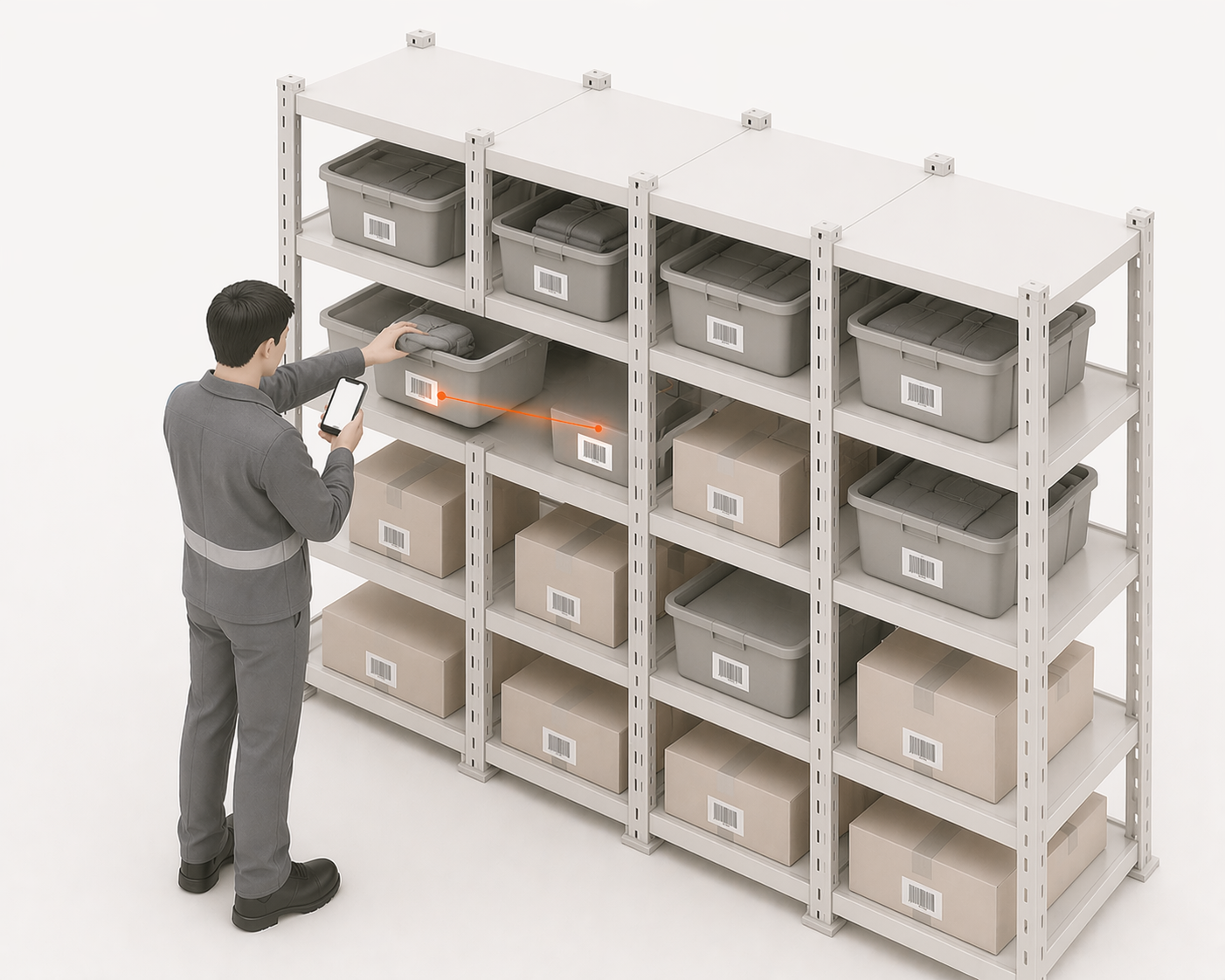
Why This Error Keeps Coming Back
Flipping the setting is quick to check. The reason you are reading a full guide is that for most growing merchants, it comes back. Untracked variants are almost never a settings problem — they are a product-creation process problem. The usual sources:
Fix the setting today and one of these will quietly recreate the error next month. The durable fix is a receiving and product-onboarding workflow where no product reaches sellable status until it is tracked, located, and counted — which is an operations discipline, not a Shopify checkbox.
When the Setting Is On and the Numbers Are Still Wrong
Enabling tracking tells Shopify to count. It does not make the count correct. Merchants often fix "not tracked", watch the numbers for a few weeks, and discover a different problem: Shopify says 23, the shelf says 19.
That is inventory drift — the gap between recorded and physical stock, accumulated through unscanned movements: returns stowed without a restock, pick errors never corrected, damaged units removed without an adjustment. Tracking makes drift visible; it does not prevent it. And drift left alone matures into the error customers feel: overselling.
The sequence is worth naming, because it is the same story on every growing Shopify operation:
- Untracked inventory — Shopify is not counting (this page)
- Inventory drift — Shopify is counting, but wrong
- Overselling — the wrong count meets a real customer
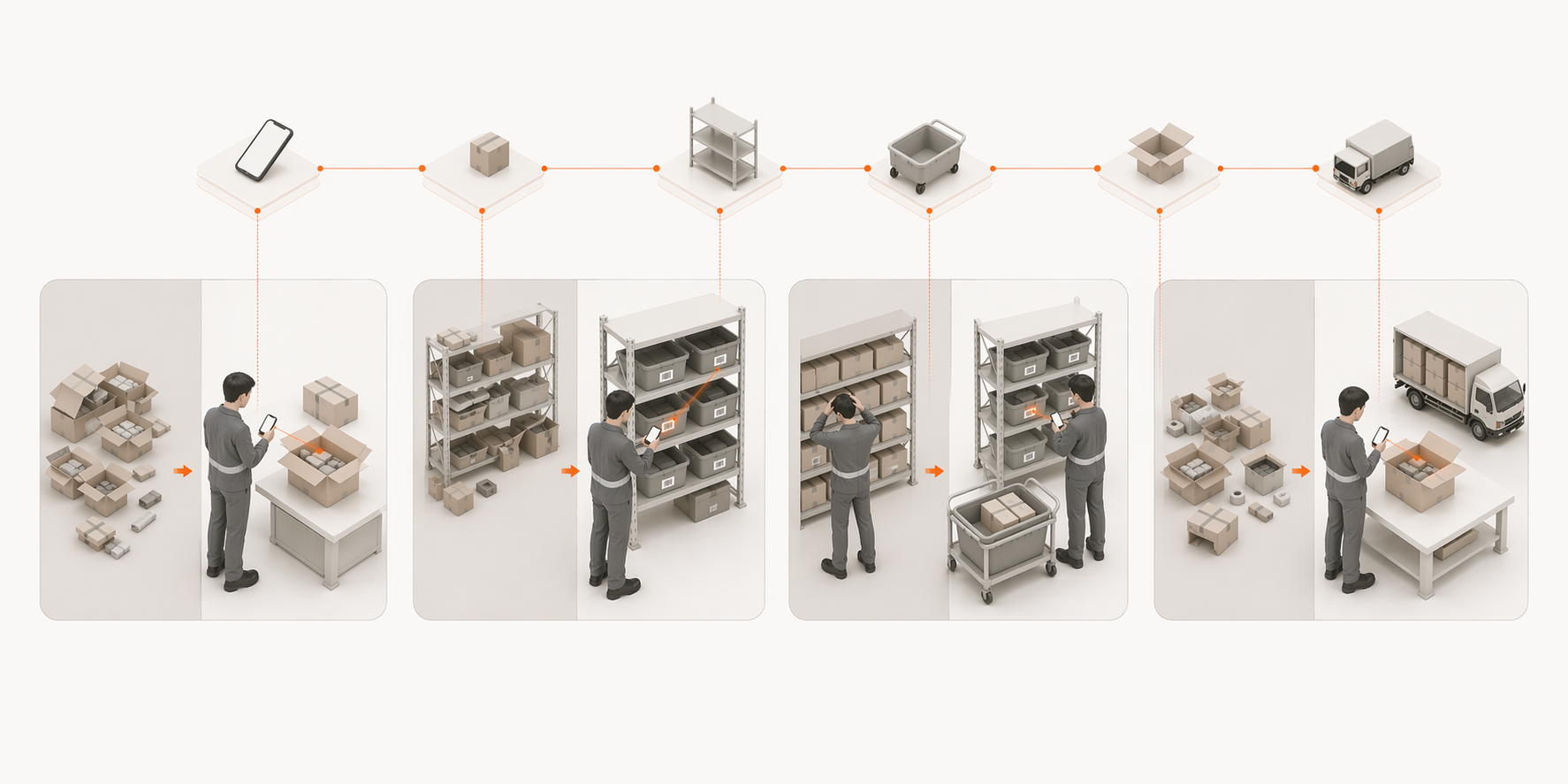
Each stage has its own fix, and each fix holds only as long as the physical operation records what actually happens on the floor.
The Warehouse-Grade Version of "Tracked"
Shopify's Track quantity gives you one number per variant per location. For a store fulfilled by a 3PL or a single shelf unit, that is enough. For a merchant running their own warehouse, "tracked" needs to mean more:
- Where the units are — bin and shelf level, not just "Warehouse 1"
- How the count got there — an event history you can replay, not a snapshot you have to trust
- Who moved stock last — scan-level accountability per operator
- What is incoming — PO receiving that records accepted quantities at the point of delivery
That layer is what a warehouse management system adds on top of Shopify's native tracking — covered in full in where Shopify ends and a WMS begins. If "inventory not tracked" was your error today, Shopify's setting is your fix today. If it is the third inventory fire this quarter, the setting was never the real problem.
Tired of chasing inventory settings product by product? LaSyncro records traceable warehouse movements for receiving, stowing, picking, and returns, with supported workflows that can update Shopify from verified events.
Start free