If your Shopify stock counts do not match what is physically on your shelves, you are not alone. Inventory sync is a common operational problem for Shopify merchants running their own warehouse — and it compounds silently until a customer orders something you do not actually have.
This article covers the six root causes, how to fix each one, and when manual fixes stop being enough.
Why Does Shopify Inventory Get Out of Sync?
Shopify's inventory system is designed around orders and inventory states. When a customer buys something, available inventory becomes committed to that order. When you restock, you adjust quantities manually or via an integration. That model works when your operation is simple. It breaks when reality moves faster than your systems can record it.
1. Conflicting App Writes
If you have multiple apps with inventory write permissions — a fulfilment app, a returns app, a forecasting tool, a marketplace connector — they can write conflicting stock values depending on how each integration is implemented. For example, one app might update inventory to 47 while another later writes 52 from stale cached data. The result is inventory that oscillates and never stabilises.
Fix: In Shopify admin, audit every app with inventory write permissions. Keep one authoritative inventory writer for inventory-changing workflows. All others should read only where they do not need to control stock.
2. Failed or Delayed Webhooks
Some inventory integrations depend on Shopify events to know when something changed. If those webhook deliveries fail, arrive late, or the receiving app is unavailable, the connected system can fall behind Shopify and keep working from stale inventory data.
Fix: Check the connected app's sync or delivery logs around the time the discrepancy started. Repeated delivery failures or long gaps between updates point to an integration problem rather than the physical stock count.
3. API Throttling and Stalled Retries
Inventory integrations can also fall behind when they send updates faster than Shopify's API allowance and do not queue and retry throttled requests correctly. The rate limit itself does not make inventory wrong — the problem is an integration that drops or stalls updates instead of retrying them safely.
Fix: Check the integration's API and retry logs for throttled or failed inventory updates. A healthy integration should queue delayed writes and retry them rather than silently abandoning the stock change.
4. Unrecorded Physical Movements
Every time stock moves in your warehouse without a corresponding update in Shopify, you accumulate drift. A damaged unit pulled from a shelf. A return stowed in the wrong bin. A sample taken for a trade show. A pick error where the wrong SKU was sent. None of these trigger Shopify updates automatically.
Fix: Establish a physical log for every non-order stock movement and process it in Shopify the same day. In practice, this is hard to sustain manually — which is why scan-based warehouse systems exist.
5. Multi-Location Misconfiguration
Shopify's multi-location feature is powerful but easy to misconfigure. If active fulfillment locations and inventory assignments do not match your actual operation, stock can be allocated to a location that is not the right place to fulfill the order — making items appear unavailable when they are physically in stock elsewhere.
Fix: Disable unused fulfillment locations, ensure active fulfillment locations and inventory assignments match the actual operation, and align order routing with where stock is genuinely available.
6. Return Processing Gaps
Returns can create sync problems when the physical return and the Shopify restock happen at different times. A return arrives, gets checked, sits in a returns area — and is never restocked in Shopify. Meanwhile Shopify still shows that unit as sold.
Fix: Build a returns processing step that includes a verified restock decision and the appropriate Shopify update before sellable stock is put away physically.
How to Fix Shopify Inventory Sync — Step by Step
- Audit your app permissions. Go to Shopify admin → Settings → Apps → click each app → check inventory permissions. Remove write access from apps that should not control stock.
- Check integration delivery and retry logs. Look for failed or delayed webhooks, throttled API requests, and inventory updates that were never successfully retried.
- Run a full stock count. Count every SKU physically and reconcile against Shopify. This resets your baseline. Use Shopify's Inventory page, inventory quantity adjustments, or inventory CSV import/export.
- Align locations. Disable unused fulfillment locations, ensure active locations reflect where stock can actually ship from, and align order routing with that reality.
- Fix your returns flow. Add a Shopify restock step to your returns process before items are put away.
- Log all non-order movements. Create a simple daily log for any stock movement that does not originate from a Shopify order. Process it in Shopify the same day.
After these six steps, you should have a cleaner inventory baseline. The question is how long it stays that way.
When Manual Fixes Stop Working
The six steps above work. The problem is they require consistent human discipline across every shift, every day, with every team member. As your order volume grows, the surface area for drift grows with it.
Manual reconciliation can be manageable while order volume is low and one person controls inventory. As transaction volume grows, with returns, damaged stock, multiple systems, or multiple team members touching inventory, it becomes recurring operational work — and mistakes still happen.
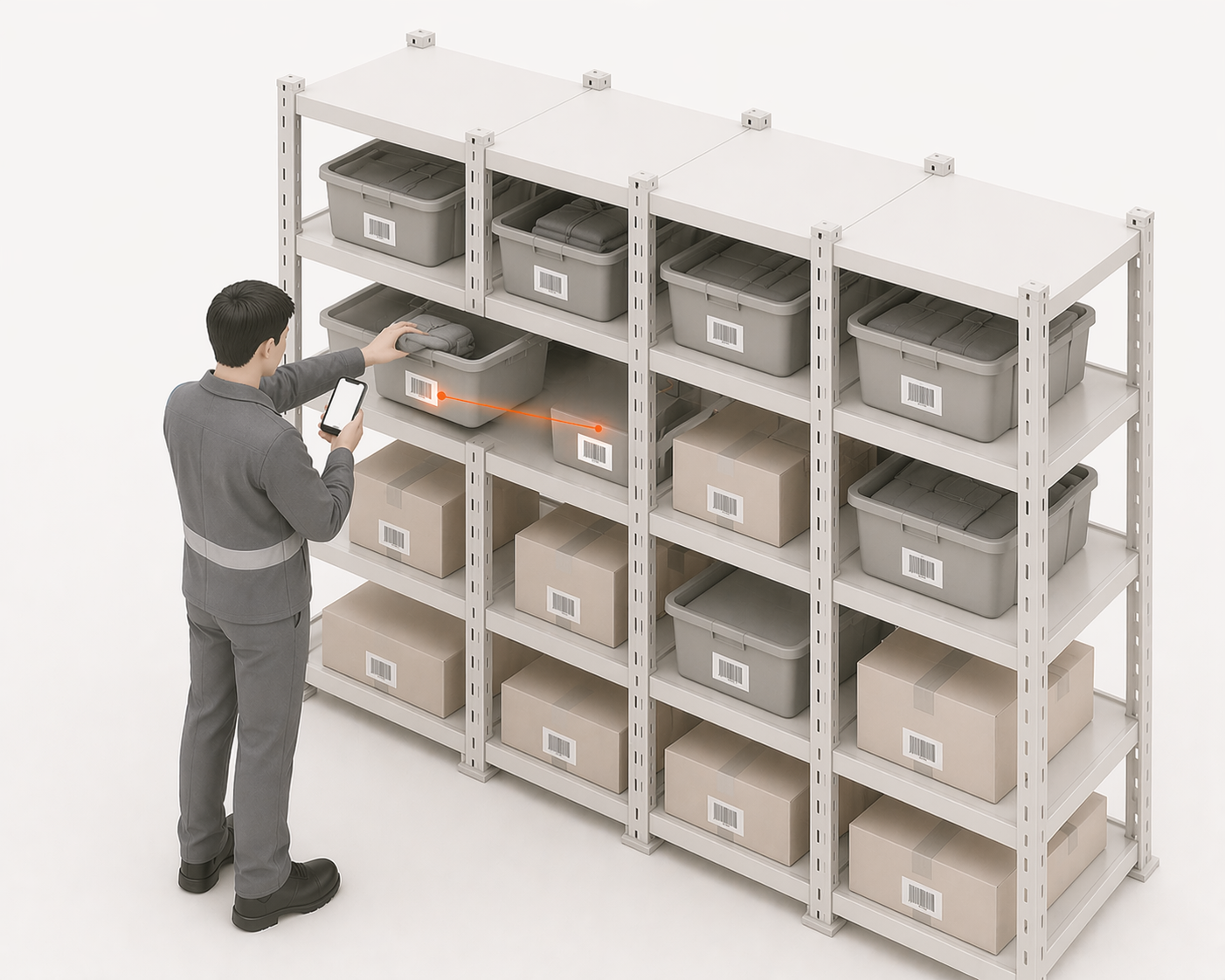
This is the point where merchants move from manual fixes to a scan-based warehouse system. Instead of recording movements after the fact, each physical action — a pick, a pack, a receive, a stow — creates a verified warehouse event that can support Shopify inventory updates. The system of record becomes the warehouse floor, not a spreadsheet or a memory.
LaSyncro is built exactly for this transition point. Warehouse movements are timestamped, attributed to an operator, and logged as traceable events. Supported Shopify sync and write-back paths can then update Shopify from verified warehouse activity, reducing drift risk and making discrepancies easier to trace.
If you are still weighing whether a full system is warranted, where Shopify's native tools end and a WMS begins breaks down the gap in more detail, and our best WMS for Shopify small business comparison covers the specific options by scale.
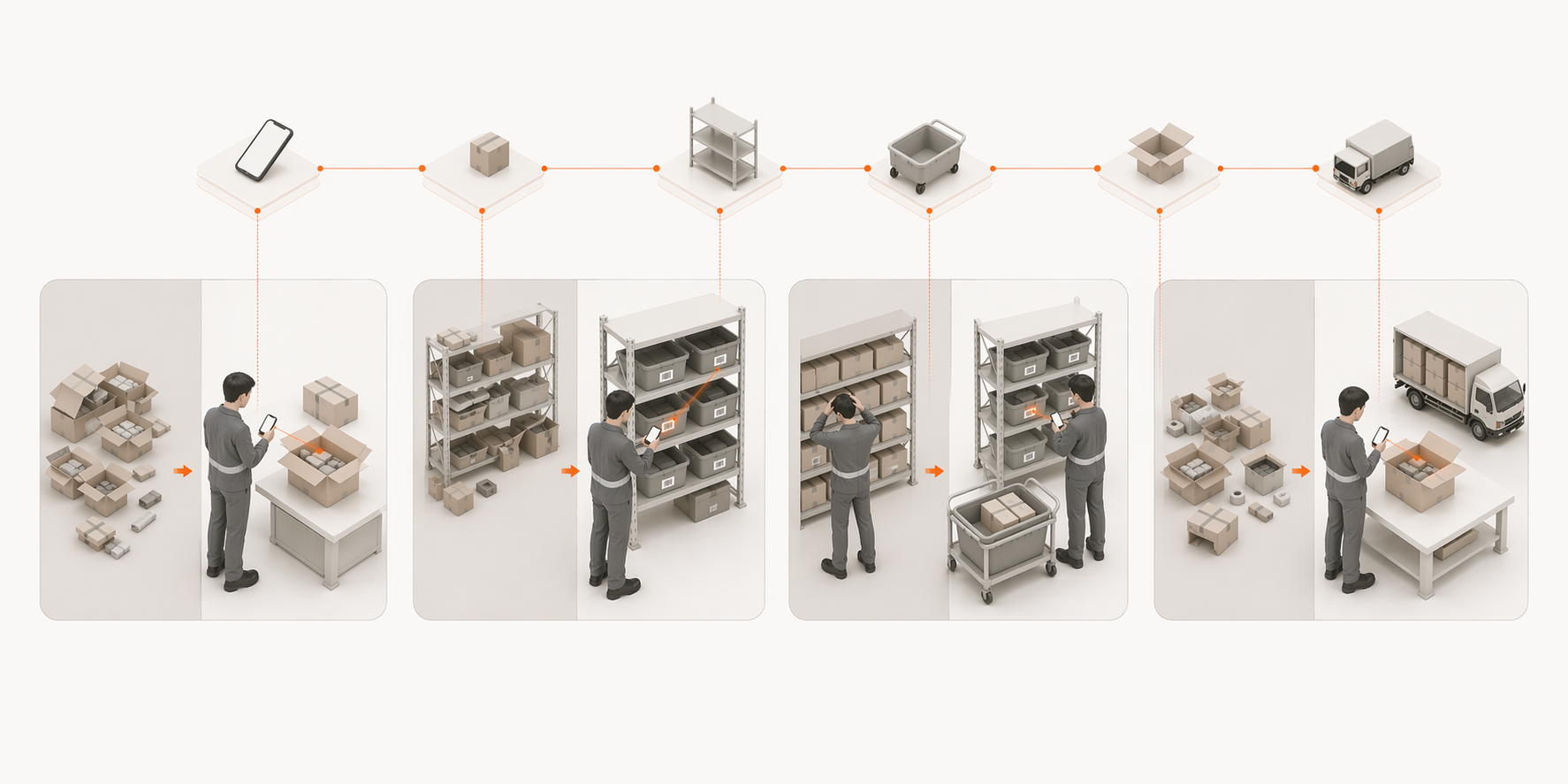
LaSyncro records traceable warehouse movements and uses supported Shopify sync paths to update inventory from verified events.
Start free