An oversold order is one of the worst operational failures a Shopify merchant can have. You have taken a customer's money for something you cannot fulfil. You now have to choose between disappointing them with a refund, delaying their order while you restock, or finding the item elsewhere at a cost to your margin.
The good news is that overselling is almost always preventable. It happens for predictable reasons — and each reason has a direct fix.
Why Shopify Overselling Happens
1. Inventory Tracking Is Disabled
This is the most common cause — and the most overlooked. When inventory tracking is disabled on a product in Shopify, Shopify has no stock count to enforce for online purchasing. It has no way to know when you have run out.
This setting often gets disabled accidentally during product imports, bulk edits, or when a third-party app resets product settings. A product import with tracking disabled can silently create overselling risk across your catalogue.
If Shopify is showing Inventory not tracked, use the dedicated guide to diagnose and fix that configuration problem before investigating deeper causes.
Fix: In Shopify admin, go to Products → Export and check the inventory tracking fields in your product CSV. Current Shopify exports use fields such as "Inventory tracker" or "Variant Inventory Tracker"; stocked Shopify inventory should be tracked by Shopify, while a blank tracker means inventory is not being tracked. For large catalogues, use product bulk editing or an import to turn on Track quantity for stocked products.
2. "Continue Selling When Out of Stock" Is Enabled
Shopify has a setting per product that allows orders to continue even when inventory reaches zero. This is useful for made-to-order or pre-order products — but it is catastrophically wrong for stocked items.
Like disabled tracking, this setting often gets enabled accidentally during imports or by apps that reset product configurations.
Fix: Audit every product for this setting. In Shopify admin, review the product inventory settings or export your product CSV and check "Continue selling when out of stock" / "Variant Inventory Policy". A policy of "continue" allows sales after zero; "deny" prevents online purchases after tracked available inventory reaches zero. Disable continue-selling on every stocked product that is not intentionally sold as a pre-order.
3. Race Conditions on Low-Stock Items
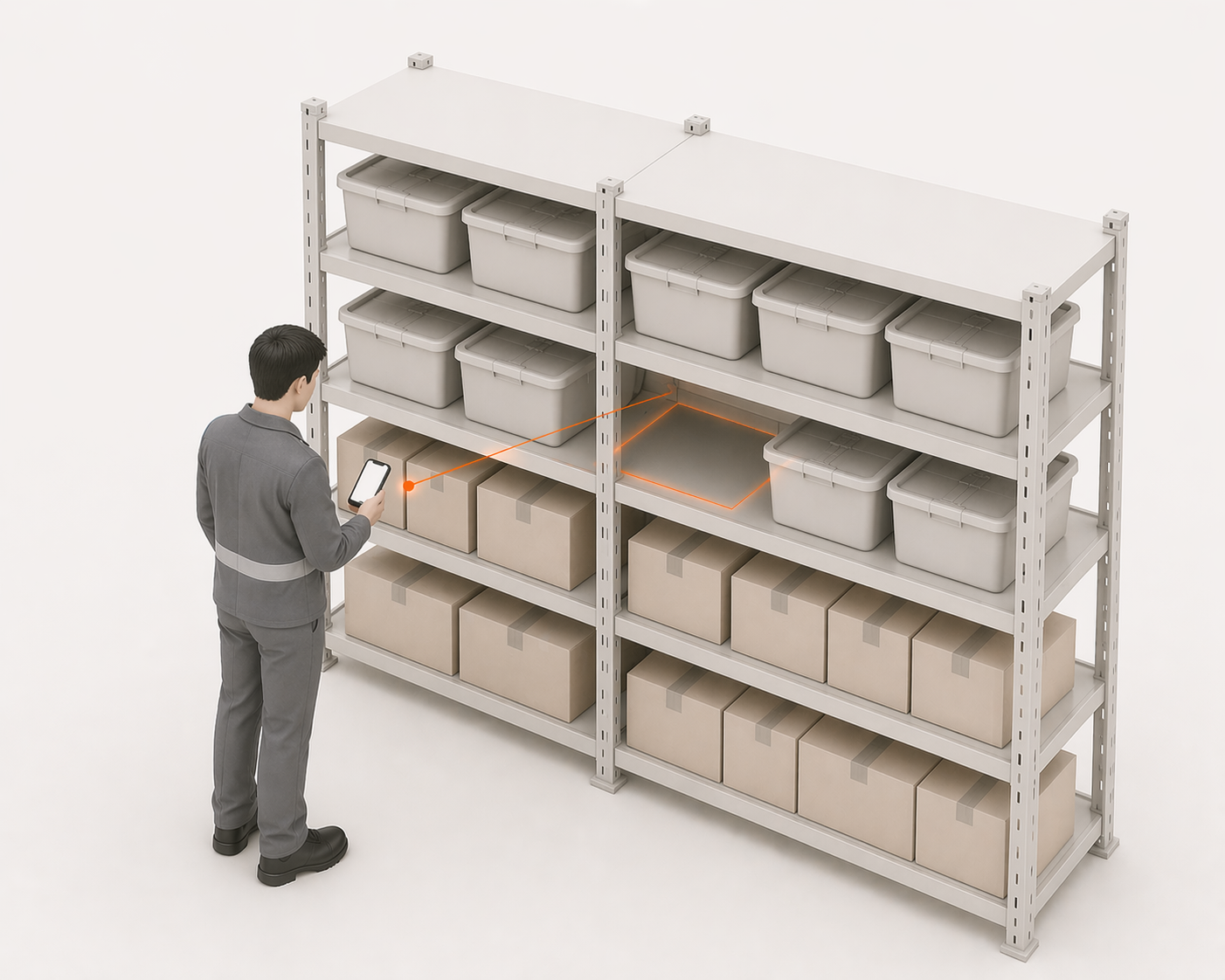
When a product drops to 1 or 2 units, treat it as operationally risky — but do not assume the root cause is always an undocumented storefront checkout race. Shopify's documented behavior is that tracked online inventory normally cannot be purchased at zero by default when "Continue selling when out of stock" is off.
Overselling can still appear around low stock when order routing assigns demand to a location without enough inventory, when POS staff sell below zero after a warning, or when an app writes inventory from stale data. Shopify also documents concurrency protection for inventory API mutations, so timing issues are real; the safer merchant diagnosis is low-stock exposure plus configuration, routing, or sync risk.
Fix: Use Shopify's Safety stock unavailable state when you need a reserve. Moving units from Available to Unavailable → Safety stock keeps them in your on-hand count but removes them from the sellable quantity. Reorder points and low-stock alerts are planning tools; they do not by themselves reserve stock from sale.
4. Sync Delays and App Conflicts
If you use multiple apps with inventory write permissions — a returns app, a marketplace connector, a forecasting tool, a fulfilment integration — they can each update inventory based on slightly stale data. App A sees 10 units, decrements to 8, writes 8 to Shopify. App B, running a sync 20 seconds later, also saw 10 units before the first update, decrements to 9, and writes 9 to Shopify — overwriting App A's correct count of 8. The result is an inflated inventory count that enables overselling.
Fix: Audit every app with Shopify inventory write access. In Shopify admin, go to Settings → Apps, open each relevant app, and review Activity and permissions. Designate one authoritative inventory writer for inventory-changing workflows and remove write access from apps that should not control stock.
What Shopify's Inventory Count Actually Means
A Shopify product can look available to customers even when the operational picture is more complicated. The number that matters on the storefront is not just how many units exist in the building. Shopify separates inventory into states such as on hand, available, committed, unavailable, and incoming.
For overselling, the important distinction is this:
- On hand is the total quantity recorded at a location
- Committed is stock already attached to existing orders
- Unavailable is stock that exists but should not be sold
- Available is what can still be sold online
- Incoming is stock expected from a transfer or inventory app, but not yet available to sell
Overselling happens when the available number is higher than physical reality. That can happen because a return was counted too early, damaged stock was not removed, stock was moved between locations without being recorded, or an app wrote an old count back into Shopify.
There are also edge cases. Draft orders, POS activity, marketplace connectors, and high-speed checkout flows can all create timing gaps if inventory is not updated from one reliable source. If you run flash sales or sell the same SKU across Shopify, Amazon, eBay, Etsy, or retail POS, treat low-stock SKUs as risk items before they hit zero.
Fix: For low-stock SKUs, check the physical shelf count, committed orders, unavailable stock, incoming stock, and app sync history before trusting the storefront number.
How to Audit Your Current Overselling Risk
Before fixing anything, establish your current exposure:
- Export your Shopify products CSV and check inventory tracking fields such as "Inventory tracker" / "Variant Inventory Tracker" plus "Continue selling when out of stock" / "Variant Inventory Policy" for every stocked SKU
- Go to Shopify admin → Settings → Apps and review Activity and permissions for every app that can write inventory
- Review recent orders, inventory adjustments, and customer refunds for cases where recorded available stock went below zero or required manual correction
- Compare your Shopify inventory counts against a physical count for fast-moving or high-risk SKUs
The gap between step 4's numbers is your current inventory drift — the silent overselling risk that exists right now regardless of your settings.

When Settings Fixes Stop Being Enough
The four fixes above work. The problem is they are configuration changes — they reduce overselling risk but do not eliminate the underlying cause, which is the gap between physical stock reality and Shopify's records.
Every time a warehouse movement happens without a corresponding Shopify update — a return stowed incorrectly, a damaged unit removed from a shelf, a pick error where the wrong item was taken — that gap grows. Over time, even a perfectly configured Shopify store accumulates enough drift to cause overselling.
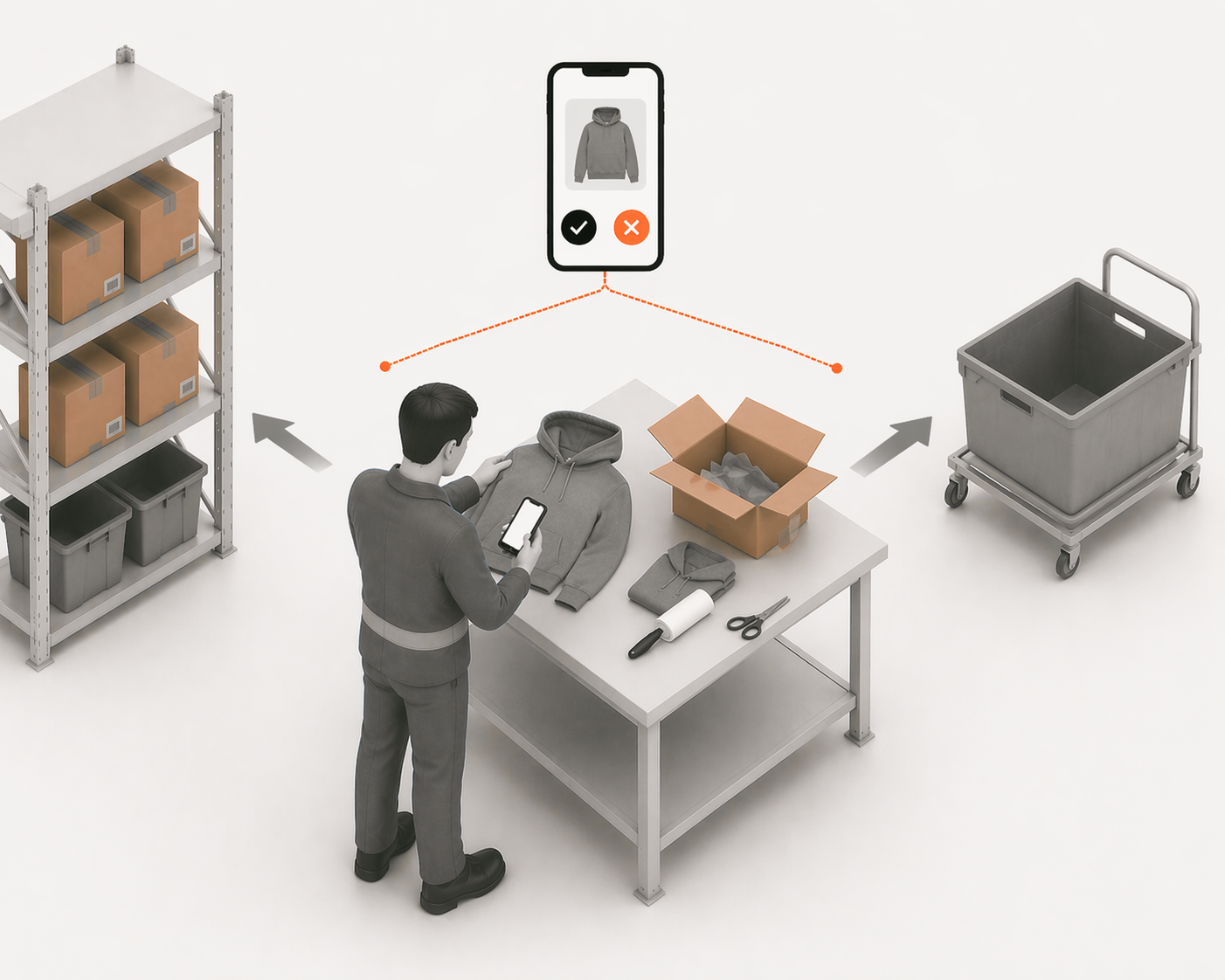
The durable fix is closing that gap as much as possible: warehouse scans create traceable movement events, and supported Shopify inventory-sync paths can update Shopify from verified warehouse actions. When your warehouse team picks, receives, stows, or returns stock, the priority is a reliable event record Shopify can trust rather than a delayed spreadsheet update.
This is what LaSyncro's warehouse scan layer is built around. Picks, packs, receipts, and stows create traceable warehouse movements; supported Shopify sync paths can then update Shopify from verified events. Overselling risk drops because Shopify no longer depends only on delayed manual updates or disconnected spreadsheets.
What to Do Next
If you are seeing oversold orders today, start with the configuration fixes first:
- Confirm inventory tracking is enabled on every stocked SKU
- Disable "Continue selling when out of stock" for products that are not pre-orders
- Review every app with inventory write access
- Count fast-moving or high-risk SKUs against Shopify's available inventory
- If you need a reserve, move units into Shopify's Safety stock unavailable state instead of relying on a reorder point alone
If those fixes do not stop the problem, the issue is no longer just Shopify configuration. It is warehouse drift. That means stock is moving physically before Shopify knows about it.
At that point, the priority is simple: every receive, stow, pick, pack, return, and adjustment needs to create a verified warehouse event that can support Shopify inventory updates. See where Shopify's native tools end and warehouse management begins for the full breakdown.
LaSyncro helps reduce overselling risk by turning receiving, picking, stowing, and return work into traceable warehouse events Shopify can sync from.
Check stock risk