Quick answer
Your first warehouse setup has two immediate goals: map where stock can physically live, and become ready to establish what inventory is physically present.
Connect Shopify → Map warehouse basics → Count opening stock
Start by connecting your Shopify store. After Unlock Insights, Ops Console introduces the next setup action with Start here.
You only need one valid, active Pick or Storage Stock location to complete Map warehouse basics and make Count opening stock available. This is the minimum mapping milestone, not a fully mapped warehouse or completed inventory reconciliation.
Start with Ops Console
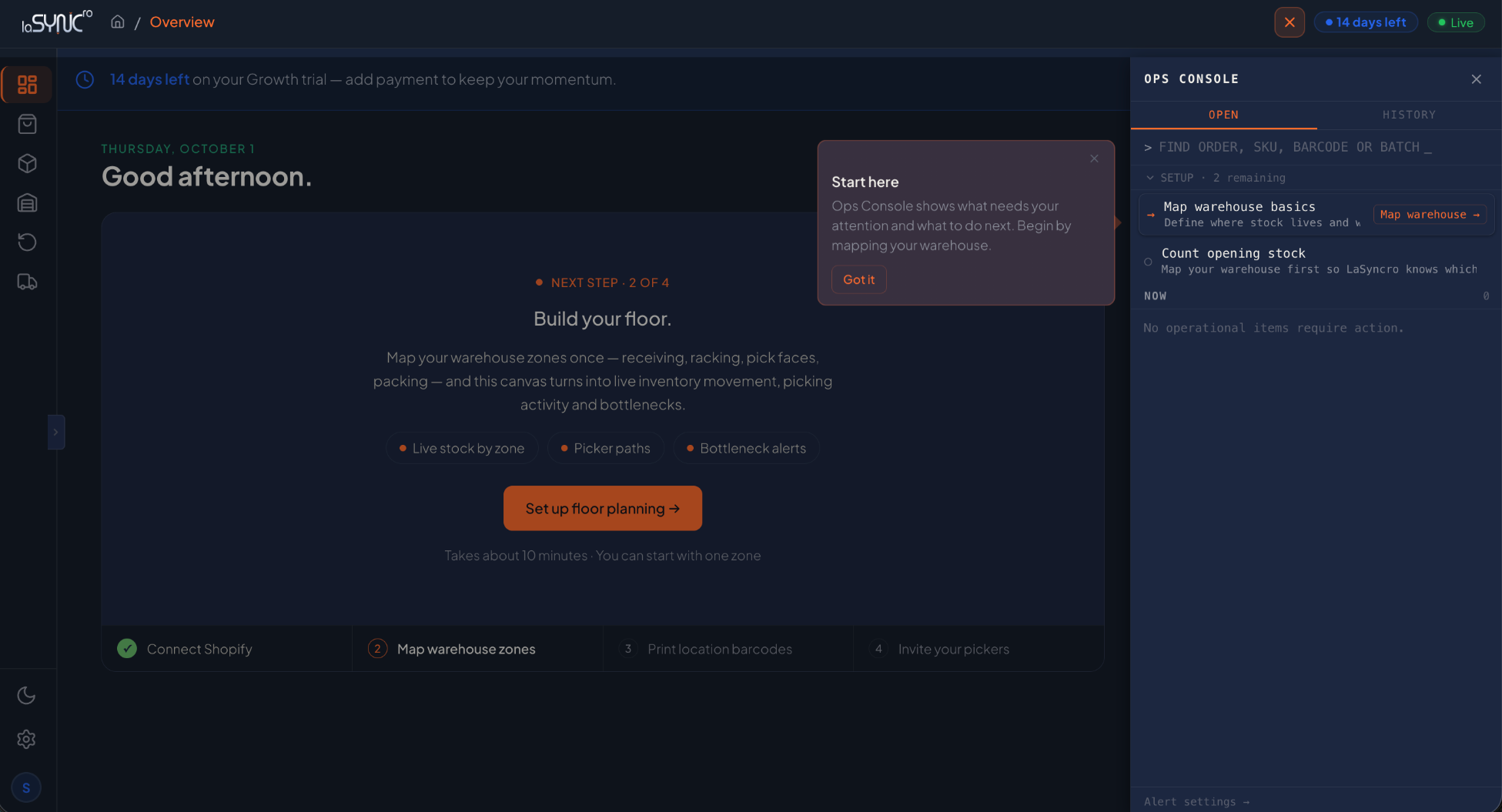
The Start here Spotlight introduces Ops Console as your guide to what needs attention and what to do next. On first entry, it surfaces the next meaningful setup action: Map warehouse basics.
You can close Ops Console and reopen it later to return to your next action.
Define your warehouse floor
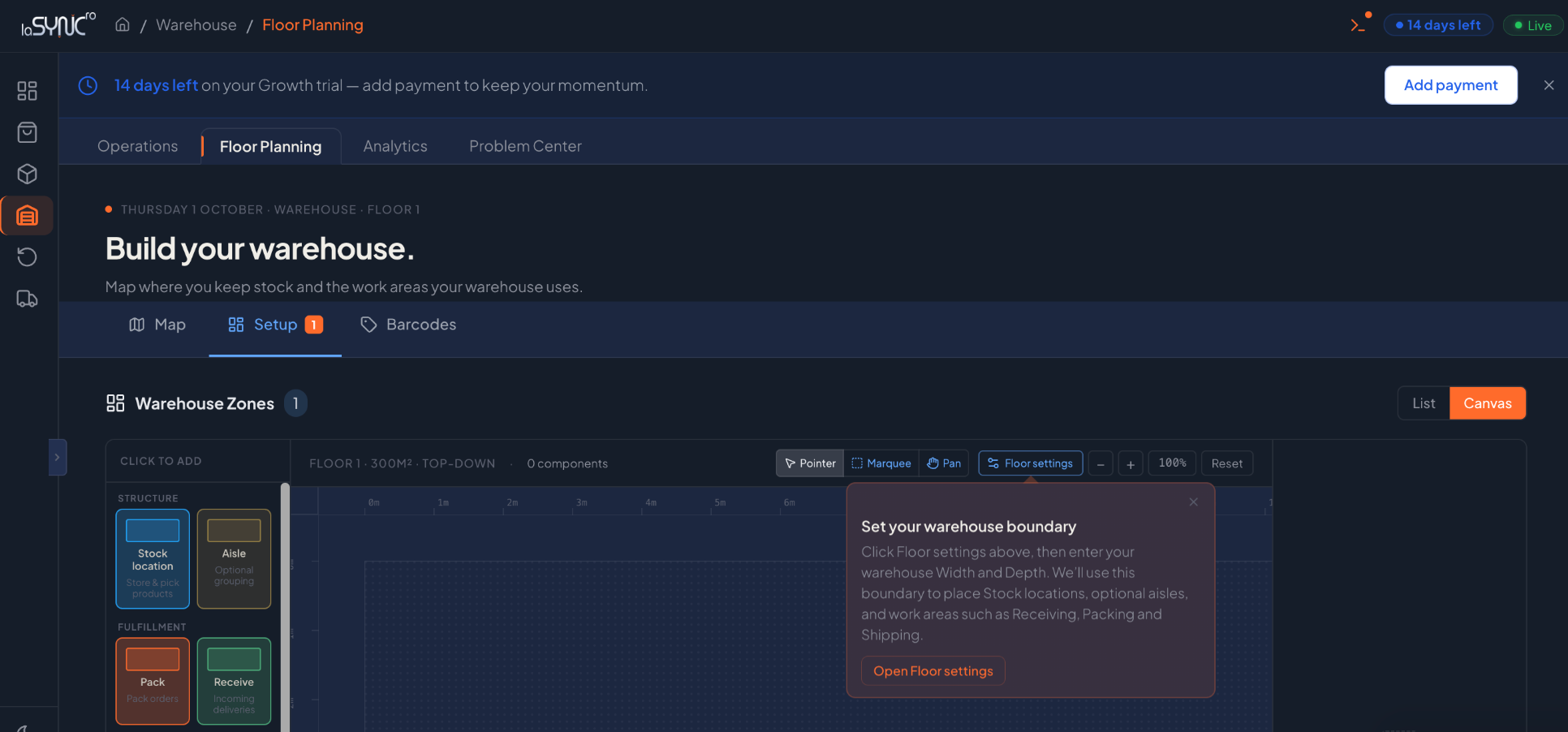
The Set your warehouse boundary Spotlight introduces the physical floor that will contain your operational locations. In Floor Settings, use Width and Depth to define that boundary.
A warehouse boundary is not a Stock location. It describes the extent of your floor, not a place where inventory is stored or counted. Defining the boundary alone does not complete Map warehouse basics.
Add your first Stock location
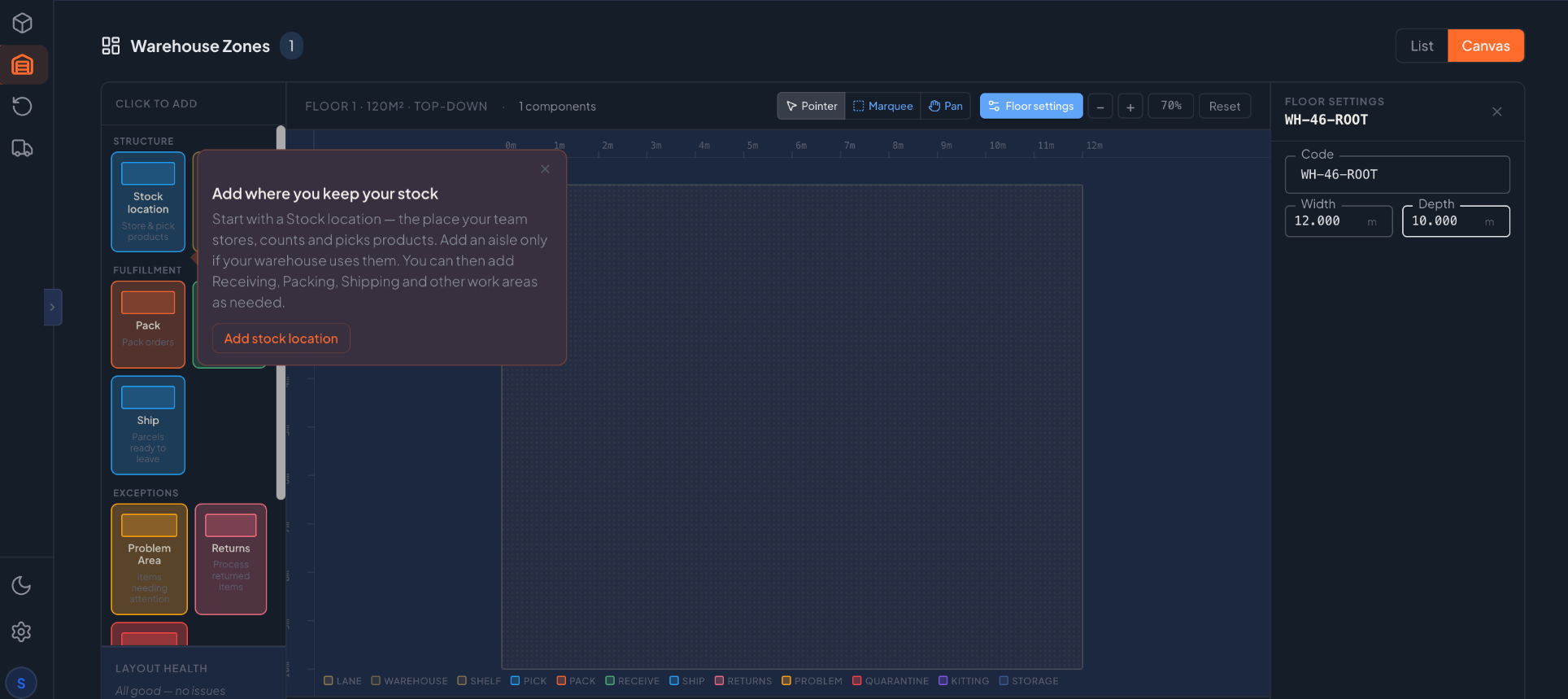
The Add where you keep your stock Spotlight guides you to create your first Stock location: a physical place where products can be stored and counted.
Use a code that identifies a real place in your warehouse, such as PICK-01, STORAGE-A-01, or BIN-B-04. Create a valid, active Stock location of type Pick or Storage.
You do not need to finish mapping your entire warehouse before continuing. One valid Pick/Storage Stock location satisfies Map warehouse basics. You can add more locations as you continue setting up the warehouse.
Start establishing your inventory truth
Once your first valid Stock location exists, the setup transition is:
First valid Stock location → Map warehouse basics complete → Count opening stock available
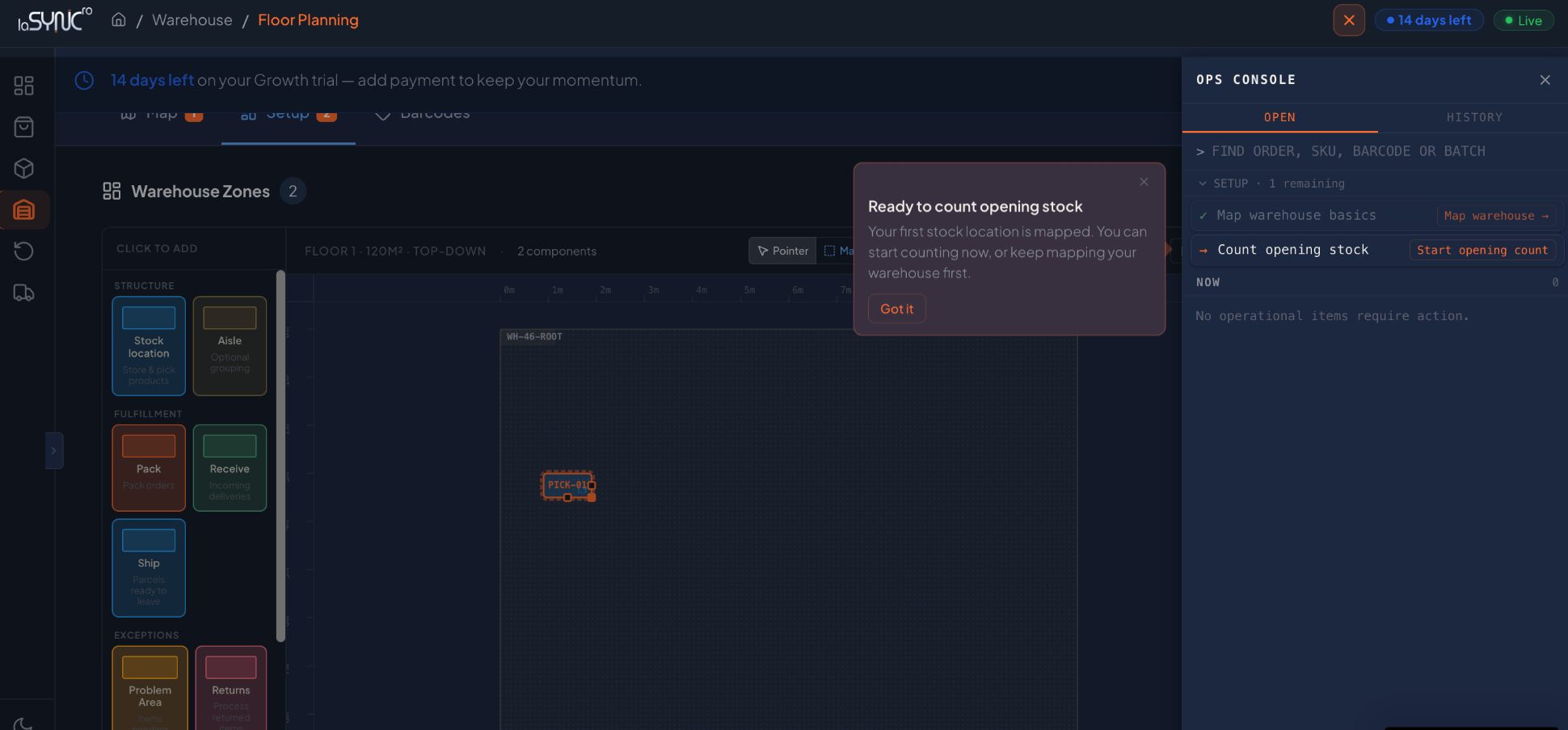
Ops Console can then show Ready to count opening stock:
Your first stock location is mapped. You can start counting now, or keep mapping your warehouse first.
Shopify or system quantities and the stock physically present in your warehouse can differ. Opening count is how you begin establishing what is actually there, in the places where you keep it.
Both choices are valid:
- Start counting now if you are ready to establish opening stock.
- Keep mapping first if you want to add more of your warehouse locations before counting.
Opening count does not start automatically. Making Count opening stock available leaves that choice with you.
Common questions
Do I need to map my entire warehouse first?
No. One valid, active Pick/Storage Stock location completes the minimum mapping milestone. You can start opening count at that point or keep mapping first.
Why was Count opening stock locked?
In this first setup sequence, Count opening stock becomes available after your first valid Stock location exists. Setting the warehouse boundary alone does not satisfy that requirement.
Will LaSyncro start counting automatically?
No. You choose when to start opening count. Completing Map warehouse basics makes it available without starting it.
Can I add more locations later?
Yes. Your first location is the minimum needed to continue, not the limit of your warehouse map.
I closed Ops Console. Can I reopen it?
Yes. You can reopen Ops Console later to see what needs attention and return to your next setup action.
What happens next
The next operational stage is opening inventory/counting. More detailed reCount and reconciliation guidance will be documented once that workflow is finalized.